Updating the Wi-Fi password removes devices that do not know the new key and is a sensible step after sharing access or installing a new router.
Sign In to the Router
Open the local admin page while connected to your network and authenticate with the administrator account.
Open Wireless Settings
Look for Wi-Fi, Wireless, WLAN or Network settings. Dual-band routers may show separate 2.4 GHz and 5 GHz controls.
Choose a Network Name
Use a recognisable SSID that does not reveal your address, surname or router password.
Create a Strong Password
Use at least 14 characters with unrelated words or a generated password. Choose WPA2 or WPA3 security.
Reconnect Devices
Save the changes, wait for Wi-Fi to restart and reconnect each approved device using the new password.
Change wireless credentials without losing essential devices
Changing Wi-Fi credentials disconnects every wireless device. Prepare the new security mode and reconnection order first so printers, mesh nodes and smart devices are not accidentally left offline.
Connect to the router locally and sign in with the administrator password
Connect to the router locally and sign in with the administrator password.
Open Wireless, Wi-Fi, WLAN or Network settings
Open Wireless, Wi-Fi, WLAN or Network settings. On dual/tri-band routers, check whether one name is shared across bands.
Write down the current SSID and security mode before editing so older devices can be diagnosed later
Write down the current SSID and security mode before editing so older devices can be diagnosed later.
Choose WPA2-AES, WPA3 or a WPA2/WPA3 transition mode supported by all essential devices
Choose WPA2-AES, WPA3 or a WPA2/WPA3 transition mode supported by all essential devices. Do not select WEP or TKIP.
Enter a unique passphrase of at least 14 characters that is not reused for the router administrator account
Enter a unique passphrase of at least 14 characters that is not reused for the router administrator account.
Apply the change and wait for wireless radios to restart
Apply the change and wait for wireless radios to restart. A temporary disconnection is expected.
Forget the old network on one test device, reconnect with the new password and verify Internet and local printing
Forget the old network on one test device, reconnect with the new password and verify Internet and local printing.
Reconnect smart-home devices individually
Reconnect smart-home devices individually. Many use only 2.4 GHz; temporarily separate band names only when their onboarding process requires it.
Update saved credentials on extenders, mesh nodes, printers and network backups
Update saved credentials on extenders, mesh nodes, printers and network backups.
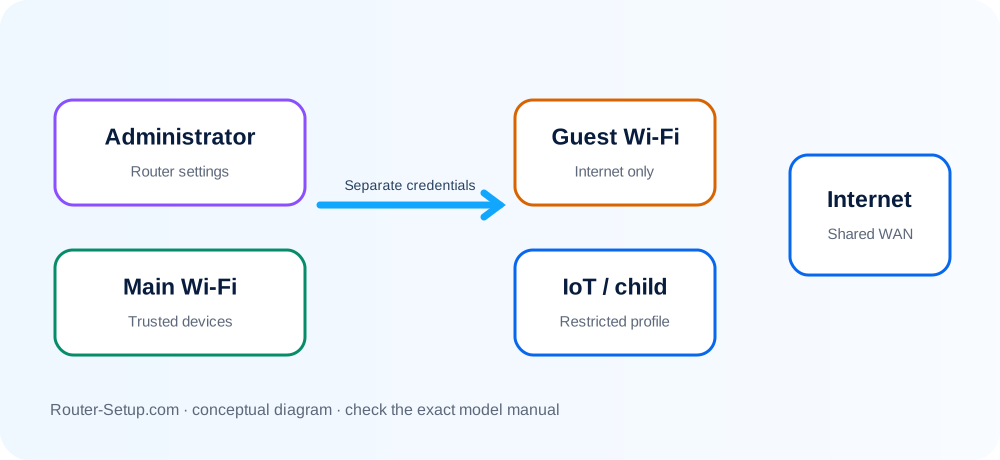
Confirm guest Wi-Fi still uses a separate password and that WPS is disabled if it is not needed
Confirm guest Wi-Fi still uses a separate password and that WPS is disabled if it is not needed.
Confirm the result
- A freshly forgotten/rejoined phone connects with the new passphrase.
- A 2.4 GHz smart device and a 5 GHz computer both work.
- Guest access and router administration still use separate credentials.
Wi-Fi password changes: compatibility and reconnection questions
Does changing the password disconnect everyone?
Yes. Every wireless device must reconnect with the new password.
Should both bands use the same name?
A shared name is convenient; separate names can help with manual band selection and diagnosis.
Can I see the current password?
Some routers reveal it after administrator authentication; others allow only replacement.
Why will an older device not join after the change?
It may not support WPA3-only mode. Test WPA2/WPA3 transition mode while keeping AES security, then update or replace devices that require obsolete security.
Secure every wireless entry point
Browse setup, troubleshooting, security and buying guides for every major router type.
Browse all guides