A Wi-Fi connection only confirms that your device can reach the router. Internet access also requires a working modem or fibre terminal, WAN link and valid ISP connection.
Check the Scope
Test several devices. One affected device suggests a local setting; every device failing points to the router, modem or provider.
Read Status Lights
Check power, internet and WAN indicators against the device guide. A red or amber internet light often signals loss of upstream service.
Restart in Order
Power off modem and router. Start the modem first, wait until online, then start the router.
Inspect the WAN Link
Confirm the modem cable reaches the router WAN port and check whether the router receives an internet IP address.
Test DNS Carefully
If IP-based connections work but websites do not, try a reputable DNS resolver or return custom DNS to automatic.
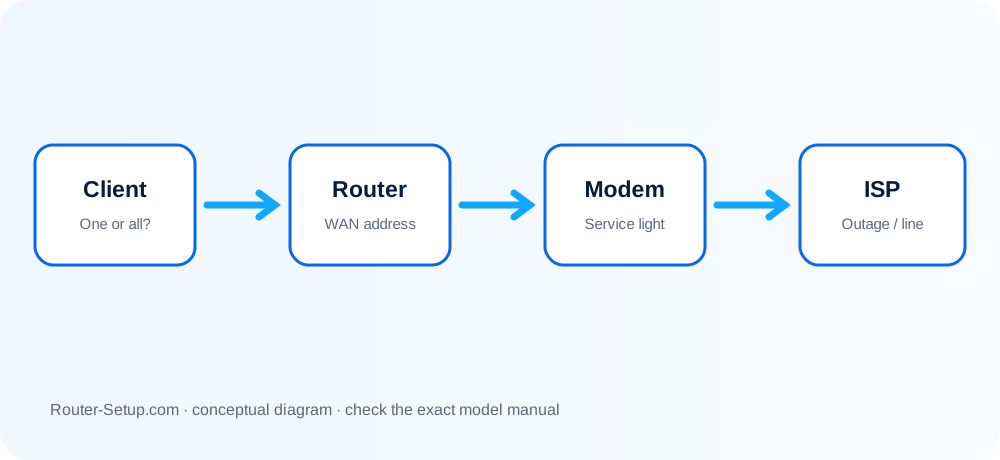
Trace Internet loss from client to provider
The Wi-Fi icon does not prove Internet service. Work outward from client to router, WAN cable, modem/ONT and ISP so the failing layer is identified before any settings are erased.
Test at least two devices
Test at least two devices. If only one fails, restart that client, forget/rejoin Wi-Fi and disable its VPN or private DNS.
Check modem/ONT service lights
Check modem/ONT service lights. If upstream service is down, router resets will not restore it.
Reseat the WAN cable and verify it runs from modem/ONT to the router Internet port
Reseat the WAN cable and verify it runs from modem/ONT to the router Internet port. Try a known-good cable.
Power-cycle in sequence: turn off both devices; start modem/ONT; wait until fully online; start router; wait for complete boot
Power-cycle in sequence: turn off both devices; start modem/ONT; wait until fully online; start router; wait for complete boot.
Sign in locally and inspect the Internet/WAN status
Sign in locally and inspect the Internet/WAN status. A blank or 0.0.0.0 address means the router has not received service.
Compare the configured WAN type with the ISP requirement: Dynamic IP, PPPoE, static IP and any VLAN tag
Compare the configured WAN type with the ISP requirement: Dynamic IP, PPPoE, static IP and any VLAN tag.
If this is a replacement router, the modem or ISP may retain the old router MAC lease
If this is a replacement router, the modem or ISP may retain the old router MAC lease. Follow the ISP release/restart process rather than cloning blindly.
Test DNS separately by disabling client VPN/private DNS and trying the provider or a trusted public DNS only after IP connectivity is confirmed
Test DNS separately by disabling client VPN/private DNS and trying the provider or a trusted public DNS only after IP connectivity is confirmed.
Connect a computer directly to the modem only when the provider allows it, then restore the router and restart the modem again
Connect a computer directly to the modem only when the provider allows it, then restore the router and restart the modem again.
Reset only after settings are backed up and modem/ISP service has been proven
Reset only after settings are backed up and modem/ISP service has been proven.
Confirm the result
- At least two devices have been tested and the fault scope is known.
- The router has a valid WAN address and working DNS.
- The modem/ONT and router were restarted in the correct upstream-first order.
Questions that separate Wi-Fi, router and ISP failures
Why does Wi-Fi show full signal?
Signal strength measures the local radio link, not the upstream internet service.
Can an unpaid bill cause this?
Yes. Provider suspension or account activation issues can leave local Wi-Fi available.
Should I factory reset?
Only after simpler checks and after recording ISP settings.
Why can local devices communicate when websites do not open?
The LAN is working but the router may lack a WAN route or DNS resolution. Inspect the WAN address and test DNS separately.
Restore service without erasing useful settings
Browse setup, troubleshooting, security and buying guides for every major router type.
Browse all guides