Your router IP address is the local gateway used to open its settings. It is not the same as your public internet IP.
Windows
Open Settings, choose Network & internet, select the active connection and look for Default gateway.
macOS
Open System Settings, choose Network, select the connection, then view Details and TCP/IP.
iPhone and iPad
Open Settings, tap Wi-Fi, tap the information icon beside the connected network and read the Router field.
Android
Open Wi-Fi details for the connected network and look for Gateway or Router. Labels vary by device maker.
Common Addresses
Typical addresses are 192.168.0.1, 192.168.1.1, 192.168.1.254 and 10.0.0.1. Always use the gateway reported by your device.
Find the live gateway on Windows, macOS, iPhone and Android
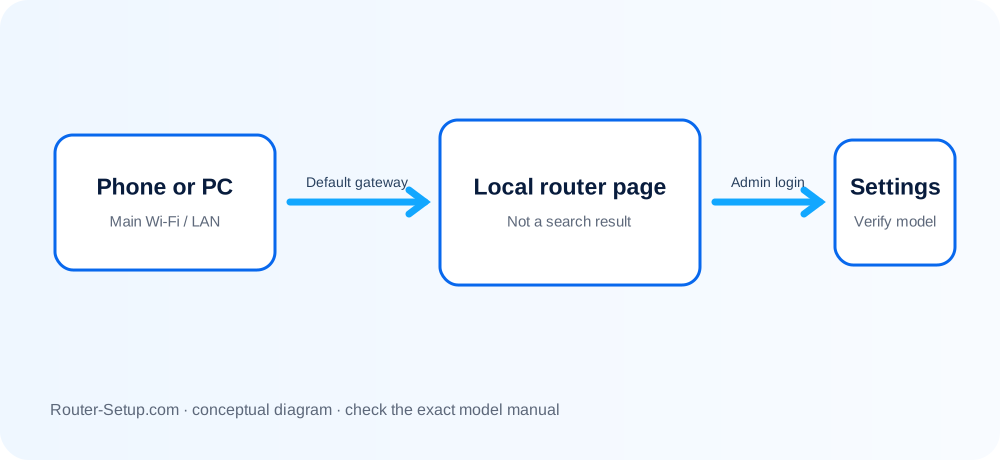
The correct router address is the gateway assigned to the active client—not a universal number copied from the web. Use the operating-system path below to read it directly.
Connect to the router network and turn off mobile data/VPN so the device reports the local path
Connect to the router network and turn off mobile data/VPN so the device reports the local path.
On Windows, open Command Prompt, run ipconfig and read Default Gateway under the active adapter
On Windows, open Command Prompt, run ipconfig and read Default Gateway under the active adapter.
On macOS, open System Settings > Network > the active connection > Details > TCP/IP and read Router
On macOS, open System Settings > Network > the active connection > Details > TCP/IP and read Router.
On iPhone/iPad, open Settings > Wi-Fi, tap the information button beside the connected network and read Router
On iPhone/iPad, open Settings > Wi-Fi, tap the information button beside the connected network and read Router.
On Android, open Wi-Fi network details and look for Gateway or Router; menu names vary by manufacturer
On Android, open Wi-Fi network details and look for Gateway or Router; menu names vary by manufacturer.
Type the displayed address into a browser address bar
Type the displayed address into a browser address bar. Do not paste it into a search engine.
If the address belongs to an ISP gateway instead of your secondary router, connect directly to the secondary router or check AP/bridge topology
If the address belongs to an ISP gateway instead of your secondary router, connect directly to the secondary router or check AP/bridge topology.
If no gateway appears, renew the connection, try Ethernet and confirm DHCP is enabled
If no gateway appears, renew the connection, try Ethernet and confirm DHCP is enabled.
Treat a public WAN IP differently from the private LAN gateway; never publish either alongside credentials
Treat a public WAN IP differently from the private LAN gateway; never publish either alongside credentials.
Confirm the result
- The displayed gateway opens a local management interface.
- The address belongs to the intended router rather than an upstream gateway.
- The public WAN address has not been confused with the private LAN gateway.
Gateway, LAN address and upstream-router questions
Is the router IP public?
No. Private gateway addresses work only inside the local network.
Can two routers use the same address?
Not on the same active network segment without causing a conflict.
Why does the address change?
A replacement router or a change in network mode may use a different private subnet.
Why does my gateway change after adding mesh Wi-Fi?
The device providing DHCP may have changed, or the mesh entered router versus access-point mode. The client always reports the gateway currently serving its LAN.
Open the correct device—not a search result
Browse setup, troubleshooting, security and buying guides for every major router type.
Browse all guides