A guest network provides internet access without exposing the main network password or trusted local devices.
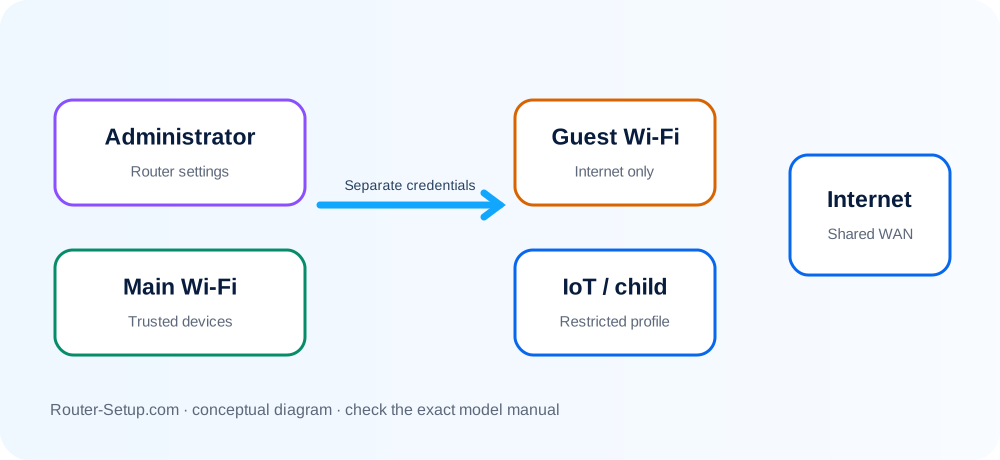
Enable Guest Networking
Open wireless settings and enable the guest network for the bands you need.
Use a Separate Name
Choose a clear SSID that differs from your private network and does not reveal personal information.
Set Strong Security
Use WPA2 or WPA3 and a password that can be changed without affecting household devices.
Disable Local Access
Turn off access to LAN resources, storage, printers and router administration unless guests require them.
Review Regularly
Change the guest password, remove unused schedules and verify isolation after firmware updates.
Create Internet-only access and test the isolation boundary
A guest network is useful only when it provides Internet while isolating private devices. Configure it, then actively test that local files, printers and the router interface remain unreachable.
Sign in to the router or mesh app and open Guest Network, Guest Wi-Fi or Wireless Guest settings
Sign in to the router or mesh app and open Guest Network, Guest Wi-Fi or Wireless Guest settings.
Enable only the bands guests need
Enable only the bands guests need. Use a recognisable SSID that does not reveal a surname, address or router model.
Select WPA2/WPA3 security and create a passphrase different from the main Wi-Fi and admin passwords
Select WPA2/WPA3 security and create a passphrase different from the main Wi-Fi and admin passwords.
Disable access to the local network, intranet, shared storage and printer resources unless guests specifically require them
Disable access to the local network, intranet, shared storage and printer resources unless guests specifically require them.
Set client isolation, a schedule, expiry or bandwidth limit when the router supports those controls
Set client isolation, a schedule, expiry or bandwidth limit when the router supports those controls.
Save the changes and connect a test phone to the guest network
Save the changes and connect a test phone to the guest network.
Verify Internet works but the router login page, NAS, shared folders and another local client cannot be reached
Verify Internet works but the router login page, NAS, shared folders and another local client cannot be reached.
Test a streaming or video call to ensure bandwidth limits are not too restrictive
Test a streaming or video call to ensure bandwidth limits are not too restrictive.
Share the guest credentials by QR code or password manager, not by exposing the main Wi-Fi password
Share the guest credentials by QR code or password manager, not by exposing the main Wi-Fi password.
Review connected guest devices and rotate the password after events or when access is no longer needed
Review connected guest devices and rotate the password after events or when access is no longer needed.
Confirm the result
- A guest phone can browse without reaching the router login page.
- Another LAN client, shared folder and NAS cannot be opened from guest Wi-Fi.
- The guest password and expiry/schedule have been documented.
Guest isolation, schedules and device-access questions
Is guest Wi-Fi slower?
It may be limited intentionally, but the radio connection can use the same standards as the main network.
Can smart devices use it?
Yes, but isolation may prevent local control features that need communication with your phone.
Should guest Wi-Fi be open?
No. Use encryption even for temporary visitor access.
Can a guest network be used for smart-home devices?
It can isolate devices, but some controllers require local discovery across the main LAN. Test required casting, hubs and phone control before moving them.
Share Internet without sharing the private LAN
Browse setup, troubleshooting, security and buying guides for every major router type.
Browse all guides