Quick answer: Red means Deco detected a problem, but the location matters. A red main Deco points toward the modem, WAN settings or Deco service; a red satellite more often points toward its link to the main Deco.
Read the red-light pattern
| Observed Deco state | Most likely layer |
|---|---|
| Main Deco red, modem offline | Start with the ISP or modem; resetting Deco will not restore an upstream outage. |
| Main Deco red, modem online | Check Ethernet, WAN address, ISP login/VLAN and modem binding. |
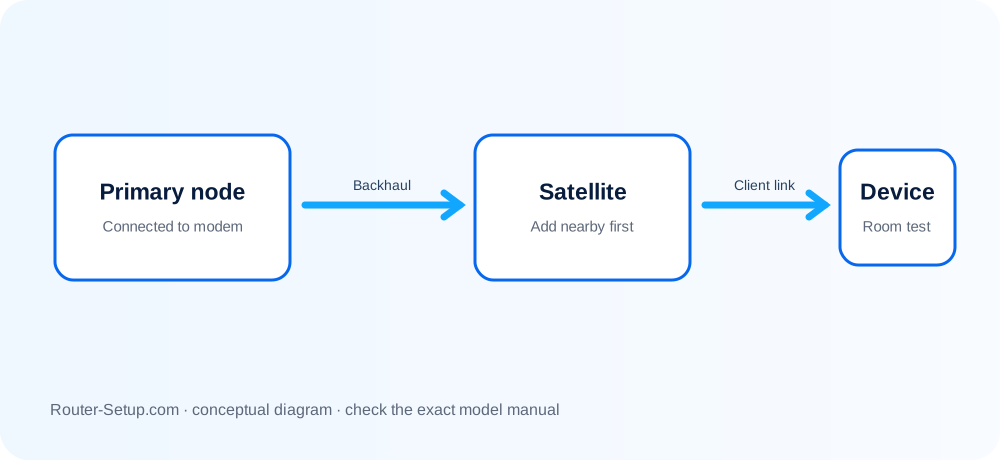
| Only one satellite red | Move it closer, check backhaul and reboot that unit. |
| Internet works despite red | Refresh the app, check firmware and confirm which node reports offline before disrupting service. |
Recover the main Deco before touching satellites
Identify the main Deco—the unit connected to the modem—and note whether red is solid or pulsing.
Test the modem directly where practical. If the modem has no Internet, contact the ISP before changing Deco.
Reseat the Ethernet cable between modem and main Deco and try a known-good cable/port.
Power off modem and all Deco units. Start the modem, wait until it is fully online, then start the main Deco and finally the satellites.
Open the Deco app and inspect Internet IPv4 details. A missing WAN address points toward modem handoff, ISP credentials or VLAN settings.
If only a satellite is red, move it closer or temporarily use Ethernet backhaul. Do not erase the main Deco network.
Update through the Deco app when a stable connection is available. Reset only after recording settings and using the exact model’s button/light sequence.
Actions that can make a Deco outage harder to diagnose
- Do not reset all Deco units during an ISP outage.
- Do not copy one Deco model’s LED colours or reset duration to every model.
- Do not create a second router layer unknowingly behind an ISP gateway; choose Router or Access Point mode intentionally.
Safety: Keep the Deco owner account, wireless password and app access private; TP-Link support files should come from the regional manufacturer site.
Deco red-light questions after the basic checks
Why is only one Deco red?
That node may have lost its wireless or Ethernet backhaul while the main Deco remains online. Test it nearer the main unit.
Why is Deco red but Internet still works?
The app or node status can lag, or one node can be offline while another serves clients. Identify the affected unit before restarting the network.
Will resetting Deco fix a modem outage?
No. Verify the modem and ISP connection first.