TP-Link Deco X20 at a glance
| Wireless | AX1800 WiFi 6 mesh |
|---|---|
| Setup interface | Deco app with TP-Link ID |
| Hardware versions | Multiple revisions; check bottom label |
| Ready state | Pulsing blue |
| Normal state | Green or white depending on hardware/firmware |
Prepare the first Deco X20
Only the main X20 should connect directly to the modem during ordinary setup. Install the Deco app, sign in with the intended owner TP-Link ID and power the unit until it pulses blue.
If it never pulses blue
TP-Link’s common Deco guidance says press Reset for one second. The LED turns yellow during reset/startup and should become pulsing blue after roughly two minutes. A long router-style reset hold is not the documented normal method.
Add X20 units before final placement
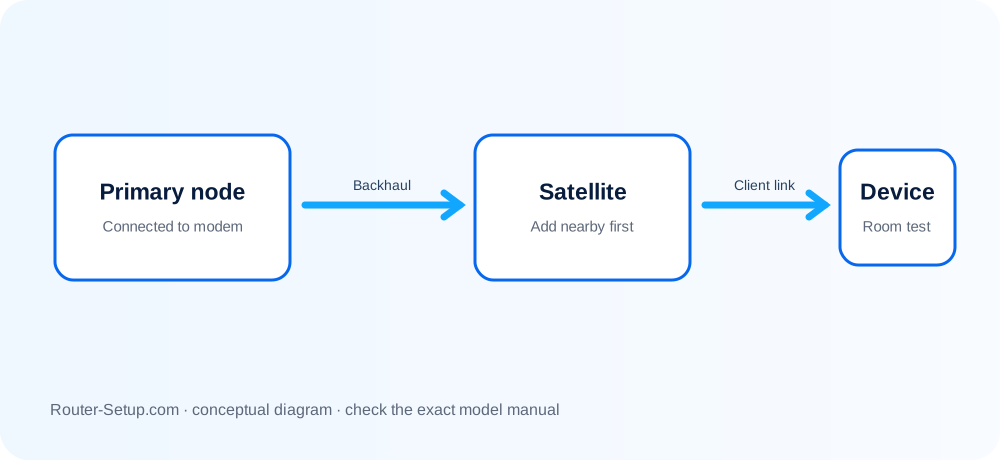
Add satellites through the app near the working network. Move them afterward to open locations where they still have a strong source. Use Connection Preference on supported firmware only after topology is stable.
Red main Deco versus red satellite
A red main X20 indicates upstream Internet/configuration trouble. A red satellite while the main remains green/white indicates a mesh link issue. These require different checks.
Router mode, AP mode and Ethernet backhaul
Router mode makes X20 the gateway; AP mode retains the existing router. Ethernet backhaul can stabilise nodes, but avoid accidental network loops and connect the topology supported by the current firmware.
Complete DECO X20 setup sequence
An X20 mesh is commissioned main-unit first. A pulsing-blue satellite is added nearby, relocated only after the app confirms it, and checked for real client backhaul.
Connect one X20 as main Deco to the modem and power the modem fully before the X20
Connect one X20 as main Deco to the modem and power the modem fully before the X20.
Open the Deco app, select X20, grant local permissions and wait for the pulsing-blue setup state
Open the Deco app, select X20, grant local permissions and wait for the pulsing-blue setup state.
Create the network and confirm the main X20 reaches a normal green/white state specified for its revision
Create the network and confirm the main X20 reaches a normal green/white state specified for its revision.
Add the second X20 near the main unit and wait until the app confirms it is online
Add the second X20 near the main unit and wait until the app confirms it is online.
Name the node, move it halfway toward the coverage area and check its signal source/backhaul in the app
Name the node, move it halfway toward the coverage area and check its signal source/backhaul in the app.
Choose Router mode only if X20 should provide NAT/DHCP; choose Access Point mode behind an existing router when appropriate
Choose Router mode only if X20 should provide NAT/DHCP; choose Access Point mode behind an existing router when appropriate.
Update all nodes through the app, then test beside each node and verify roaming during a continuous call
Update all nodes through the app, then test beside each node and verify roaming during a continuous call.
Model acceptance checks
- The main X20 reaches the Internet with other nodes off.
- Each added X20 shows its intended room and signal source in the Deco app.
- Router/AP mode matches which device should provide DHCP and NAT.
deco x20 questions
Which X20 should be main Deco?
Choose the unit connected to the modem; configure it completely before adding the others.
Why is a satellite red after relocation?
Its backhaul may be too weak. Return it nearer the main X20 and check its signal source.