Linksys MR7350 WiFi 6 Router and Mesh at a glance
| Wireless | WiFi 6 mesh-capable router |
|---|---|
| Role | Can serve as parent router in compatible Linksys mesh |
| Management | Linksys app and local interface |
| Node setup | Add compatible children near the parent first |
| Bridge mode | Available through supported app/web firmware |
Decide whether MR7350 is router or mesh parent
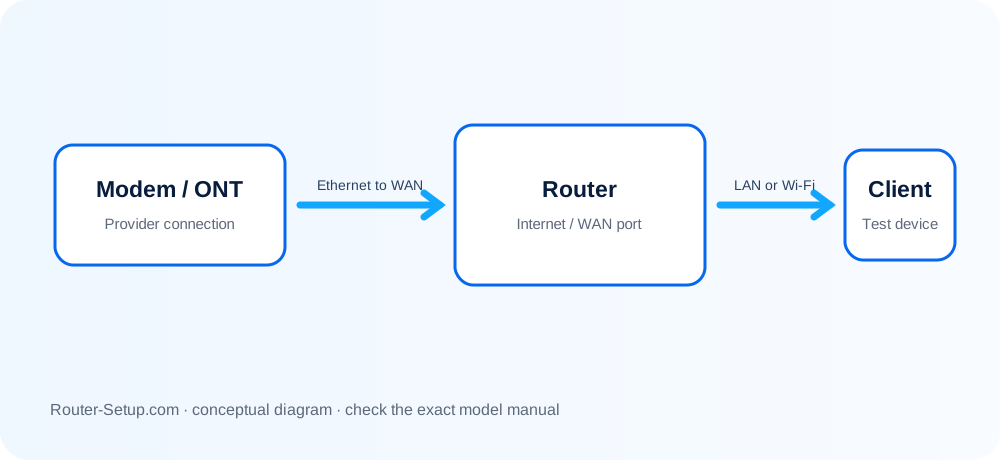
Connect MR7350 to the modem when it is the parent. A child node should not also connect to the modem during normal wireless mesh setup.
Use the ready light for this model
Linksys product generations use different ready colours. Follow MR7350-specific indication in the app/manual instead of copying a classic Velop WHW03 colour chart.
Add children close to MR7350
Power compatible child nodes near the parent for onboarding. If one node is not ready, reset that child only; preserving the working parent avoids rebuilding the network.
No Internet and double NAT
Power-cycle the modem before MR7350. When an ISP gateway remains a router, consider Bridge Mode for the Linksys system or bridge the gateway, depending on which device should own routing.
Firmware and reset discipline
Use automatic firmware where supported or choose an exact MR7350 file. Do not interrupt upgrades. Record the parent configuration before a model-specific reset.
Complete LINKSYS MR7350 setup sequence
MR7350 can be a mesh parent, but it must first be established as the intended router behind the modem or provider gateway. Add children only after that decision is proven.
Choose MR7350 as the parent and connect its Internet port to the modem
Choose MR7350 as the parent and connect its Internet port to the modem.
Use the Linksys app to detect the ready node, create the router password and configure ISP access
Use the Linksys app to detect the ready node, create the router password and configure ISP access.
Confirm the parent is online before selecting Add Nodes
Confirm the parent is online before selecting Add Nodes.
Power a compatible child near MR7350 and complete app onboarding before relocating it
Power a compatible child near MR7350 and complete app onboarding before relocating it.
Check node connection quality and distinguish a parent Internet fault from a child backhaul fault
Check node connection quality and distinguish a parent Internet fault from a child backhaul fault.
Choose Bridge Mode only when an upstream router should retain DHCP/NAT; verify which Linksys features change
Choose Bridge Mode only when an upstream router should retain DHCP/NAT; verify which Linksys features change.
Update parent and child nodes and test WiFi 6, wired access and roaming
Update parent and child nodes and test WiFi 6, wired access and roaming.
Model acceptance checks
- The app identifies MR7350 as parent and shows Internet online.
- Only the intended gateway supplies DHCP.
- Every child remains online after relocation and serves a nearby test client.
MR7350 parent-router decision path
When the modem is only a modem or ONT
Keep the MR7350 in its normal router mode. Its Internet port receives the provider connection and the MR7350 supplies NAT, DHCP, firewall rules and the primary mesh configuration. Confirm the Internet status before adding a child node; an offline parent cannot provide a working mesh merely by adding another radio.
When the provider box is also a router
Decide which device should control the network. If the provider gateway keeps routing, Bridge Mode on the Linksys system can avoid two NAT layers, but features that depend on Linksys routing can change. If the provider supports modem/bridge mode, the MR7350 can remain the router. Record the old gateway settings before changing either device.
When an existing Linksys node already owns the network
Do not connect a second prospective parent to the modem and run setup independently. Use the Linksys app’s supported add-node workflow and confirm MR7350 compatibility with the existing product family. A separately configured router creates another network rather than extending the first one.
When the child is found but will not stay online
Return the child beside MR7350 and test it there. If it is stable nearby, placement or backhaul is the cause. If it still drops, compare node firmware, power-cycle only the child and repeat app onboarding. Reset the child—not the proven parent—only after the less destructive checks fail.
MR7350 completion test
- The app identifies MR7350 as the intended parent and shows an active Internet connection.
- Every child appears under the same mesh, reports a usable connection and serves a nearby test device.
- The chosen router or bridge mode matches the upstream gateway, with only the intended device providing DHCP.
- A continuous call remains active while walking from the parent coverage area toward the child.
linksys mr7350 questions
Can MR7350 be added as a child?
Compatibility and supported roles depend on the existing Linksys mesh family; use the app’s supported add-node flow.
Why does a child work only near MR7350?
The final location likely has inadequate backhaul or interference. Relocate it between parent and weak area.