Netgear Nighthawk Mesh MR70 and MS70 at a glance
| System | Nighthawk Mesh WiFi 6 |
|---|---|
| Router model | MR70 |
| Satellite model | MS70 |
| Management | Nighthawk app and routerlogin.net |
| Firmware note | Official MR70/MS70 manual procedure selects and updates satellites before the router |
Do not confuse MR70 with Orbi
MR70/MS70 belongs to Nighthawk Mesh, not Orbi. Orbi RBS satellites are not interchangeable. Confirm that add-on units explicitly support the MR70 family.
Build the mesh close together
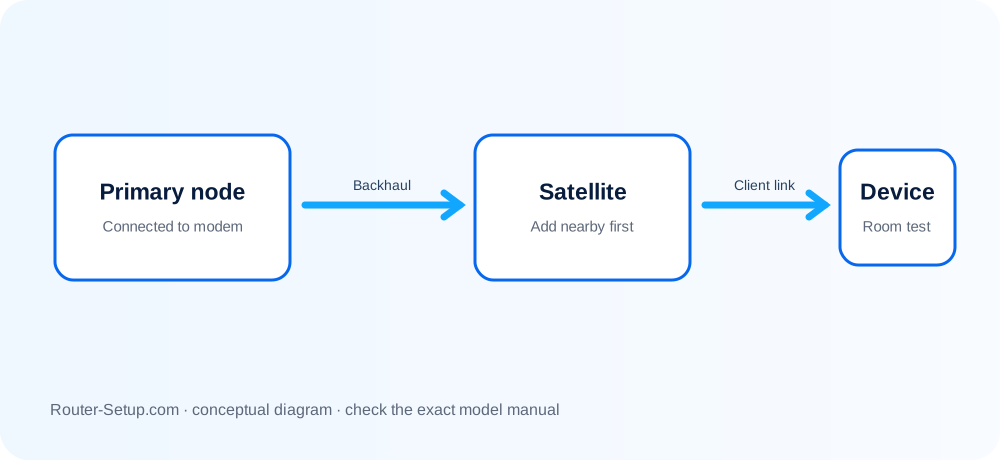
Connect MR70 to the modem and finish router setup first. Power MS70 satellites nearby for initial sync and firmware alignment. Only after they appear online should you move them toward weak areas.
Understand backhaul before testing speed
A satellite placed in the dead zone cannot relay a healthy signal. If client speed collapses behind MS70, move it halfway toward MR70 and compare before changing channels or resetting.
Manual firmware sequence
Netgear’s published MR70/MS70 instructions direct users to ADVANCED > Administration > Router Update > Manual Update and to select/update satellites first. Wait for each node to return before updating MR70.
Repair one missing satellite
Restart the affected MS70, move it close to MR70 and retry sync. Reset only that satellite if it remains absent. Resetting the functioning router unnecessarily erases the entire mesh configuration.
Complete NETGEAR MR70 setup sequence
MR70 is the router component of the Nighthawk mesh; MS70 units are satellites. Build and prove the MR70 WAN first, then onboard satellites one at a time.
Connect the MR70 router unit to the modem; do not connect an MS70 satellite to the modem as the parent
Connect the MR70 router unit to the modem; do not connect an MS70 satellite to the modem as the parent.
Restart the modem, power MR70 and follow the Nighthawk app mesh onboarding flow
Restart the modem, power MR70 and follow the Nighthawk app mesh onboarding flow.
Complete Internet and Wi-Fi setup on MR70 before adding a satellite
Complete Internet and Wi-Fi setup on MR70 before adding a satellite.
Place each satellite near MR70 during sync, add one at a time and wait for a confirmed link
Place each satellite near MR70 during sync, add one at a time and wait for a confirmed link.
Move satellites gradually and use the app to verify backhaul quality rather than judging only client signal
Move satellites gradually and use the app to verify backhaul quality rather than judging only client signal.
Confirm all MR/MS components report compatible firmware before troubleshooting roaming
Confirm all MR/MS components report compatible firmware before troubleshooting roaming.
Test beside each satellite and note the connected node; reset only a failed satellite before considering the parent
Test beside each satellite and note the connected node; reset only a failed satellite before considering the parent.
Model acceptance checks
- MR70 works with satellites powered off.
- Every MS satellite is shown under the same mesh with usable backhaul.
- A test device associates with the intended satellite during a room test.
netgear mr70 questions
Is MS70 another router?
No. MR70 is the router component and MS70 is the satellite component in this mesh family.
Should I reset MR70 when one satellite fails?
No. Test, restart and if necessary reset only the failed satellite first.