Linksys Velop WHW03 at a glance
| Product | Classic tri-band Velop node |
|---|---|
| Ready for setup | Solid purple on classic documented setup flow |
| Online | Blue after configured on common WHW-series behaviour |
| Management | Linksys app and supported local interface |
| Topology | One parent plus child nodes |
Recognise the classic Velop colour flow
WHW03 belongs to the classic Velop generation. Solid purple is the familiar ready-for-setup state. Do not use a newer Linksys model’s solid-blue ready instructions without checking the WHW03 manual.
Configure the parent first
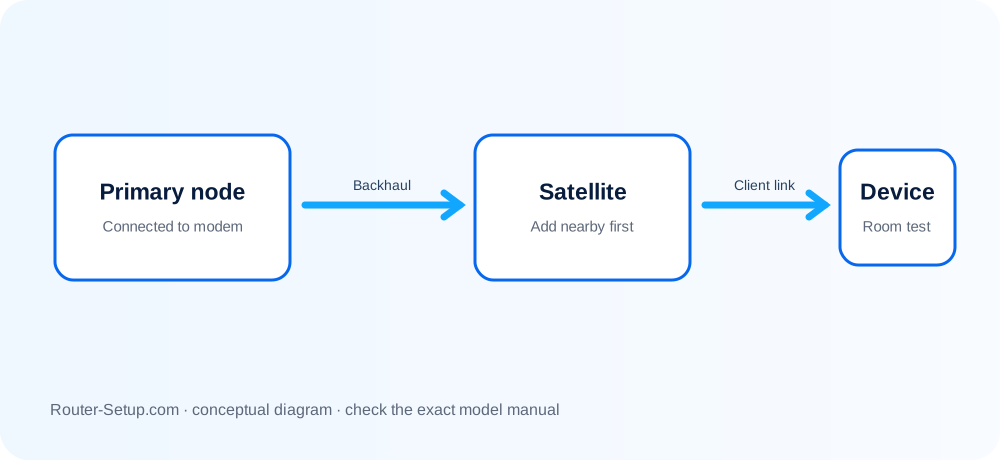
Connect one WHW03 to the modem and complete setup in the Linksys app. Wait for the online state before attempting to add children.
Add a child near the parent
Linksys instructions recommend placing a child close—often within about 10 feet—during addition. Move it after it has joined. If the child is red, reset that child rather than the parent.
Red node and weak backhaul diagnosis
A parent red state suggests Internet loss; a child red state suggests loss of mesh link. Test placement closer, remove interference and use Ethernet backhaul if supported by the topology.
Bridge mode consequences
Bridge Mode is selected in Advanced Settings > Internet Settings on supported app versions. The upstream router then owns DHCP/NAT, and some Linksys features can be reduced.
Complete VELOP WHW03 setup sequence
Classic WHW03 setup uses the purple ready state and a parent/child workflow that differs from newer MX-series instructions. Preserve those generation-specific signals.
Connect one WHW03 to the modem as parent and wait for the classic solid-purple ready state
Connect one WHW03 to the modem as parent and wait for the classic solid-purple ready state.
Use the Linksys app to create the mesh and confirm the parent reaches its normal online state
Use the Linksys app to create the mesh and confirm the parent reaches its normal online state.
Power the next WHW03 within about 10 feet of the parent and add it through the app
Power the next WHW03 within about 10 feet of the parent and add it through the app.
Wait for a completed addition before moving the child
Wait for a completed addition before moving the child. A red child indicates mesh-link trouble; a red parent points toward Internet/WAN.
Place the child halfway toward the weak area and check node status in the app
Place the child halfway toward the weak area and check node status in the app.
For Bridge Mode, open Advanced Settings > Internet Settings > Connection Type and understand that the upstream router will own DHCP/NAT
For Bridge Mode, open Advanced Settings > Internet Settings > Connection Type and understand that the upstream router will own DHCP/NAT.
Update nodes, test Ethernet backhaul only in a loop-free supported topology and verify roaming
Update nodes, test Ethernet backhaul only in a loop-free supported topology and verify roaming.
Model acceptance checks
- The parent changes from setup-ready to normal online state.
- Each child was added near the parent before final placement.
- A red parent and red child have been tested as different fault types.
velop whw03 questions
What does solid purple mean on WHW03?
It is the classic setup-ready state used by this generation.
Why is only one WHW03 red?
If it is a child, investigate its mesh link and placement while preserving the working parent.